

A slow WordPress site frustrates visitors, weakens conversions, and makes website management harder than it should be. The obvious response is to install a performance plugin, enable every optimization option, and hope the score improves.
That is also how layouts break, shopping carts stop updating, forms fail, and menus behave strangely.
Safe WordPress optimization is not about activating the most settings. It is about finding the real bottleneck, making one controlled change at a time, and confirming that the site still works. This guide explains that process for blogs, business websites, portfolios, and WooCommerce stores.
For more practical tutorials, browse WordPress tutorials and performance resources.
Why Speed Optimizations Can Break WordPress
A WordPress page depends on hosting, PHP, the database, the active theme, plugins, images, fonts, CSS, JavaScript, third-party scripts, and sometimes a CDN. Performance tools change how some of these resources are stored, combined, delayed, or delivered.
Problems appear when an optimization changes script order, caches content that should remain dynamic, removes CSS that is still needed, or conflicts with another tool doing the same job.
For example, delaying all JavaScript may improve a test score but stop a mobile menu from opening. Aggressive caching may make a WooCommerce cart show old contents. Combining CSS files can occasionally change their order and break styling.
The solution is not to avoid optimization. It is to work in a controlled order and keep a reliable rollback path.
Start With a Safety Net
Do not change performance settings on a live site until you can recover from a mistake.
Create a Complete Backup
Take a fresh backup containing:
- WordPress files and uploaded media
- The database
- Theme and child-theme files
- Custom code
- Important plugin settings
Confirm where the backup is stored and how it can be restored. For a business or ecommerce site, schedule work during a low-traffic period because restoring an older database can remove recent orders, submissions, comments, or account changes.
Use a Staging Site
A staging site is a private copy of the live website. It lets you test caching, minification, plugin removal, PHP changes, and database cleanup without affecting visitors.
Many hosts provide one-click staging. Otherwise, create a protected clone through a migration tool or ask the host for help. Ensure search engines cannot index it.
Record the Current Setup
Note the active theme, plugins, PHP version, cache or CDN services, custom code, and current performance settings. Take screenshots of important pages so visual problems are easier to identify later.
Measure Before You Optimize
Without a baseline, you cannot tell whether a change helped, did nothing, or made the site worse.
Test several page types, including the homepage, a blog post, an archive, a main landing page, the contact page, and any product, cart, or checkout pages. Run tests more than once because server load and network conditions vary.
Google’s PageSpeed Insights and Core Web Vitals guidance focuses on three user-centered metrics:
- Largest Contentful Paint (LCP): How quickly the main visible content appears
- Interaction to Next Paint (INP): How quickly the page responds to interaction
- Cumulative Layout Shift (CLS): How visually stable the page remains while loading
Google’s recommended “good” thresholds are LCP within 2.5 seconds, INP of 200 milliseconds or less, and CLS of 0.1 or less, measured at the 75th percentile of visits.
Do not chase a perfect score while ignoring usability. A site scoring 95 with a broken form is worse than a fully functional site scoring 85.
Follow the Safest Optimization Order
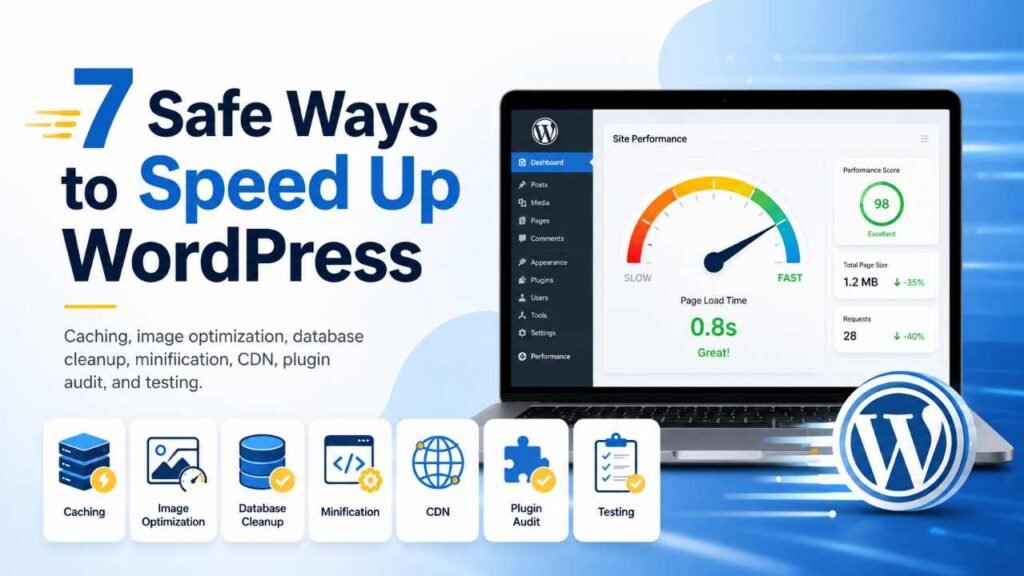
Begin with high-impact, lower-risk improvements before using settings that alter front-end behavior.
1. Fix Hosting and Server Bottlenecks First
A cache plugin cannot fully compensate for an overloaded server. If uncached pages have a slow initial response, hosting may be the main problem.
Ask your host to review:
- Resource limits
- CPU or memory throttling
- Slow database queries
- Error logs
- PHP workers
- Object caching
- Server-level caching
- Server location
Keep WordPress, themes, and plugins updated, but test major changes on staging. Use a currently supported PHP version that is compatible with your setup. Changing PHP without a compatibility check can trigger fatal errors.
The official WordPress performance optimization handbook identifies hosting, configuration, software versions, caching, compression, database tuning, and content offloading as major performance areas.
2. Configure Page Caching Carefully
Page caching stores a ready-made version of a page so WordPress does not rebuild it for every visit. It is often one of the highest-impact improvements for public pages.
Use one main page-caching system. Your host, CDN, and plugin may each offer caching, but overlapping systems make troubleshooting difficult.
After enabling caching:
- Clear every cache layer.
- Open the site in a private window.
- Test desktop and mobile.
- Submit forms.
- Check logged-in behavior.
- Test the cart and checkout.
- Confirm new content appears after publishing.
Exclude dynamic pages such as cart, checkout, account dashboards, membership content, and personalized pages when required.
3. Optimize Images Without Ruining Quality
Oversized images are a common cause of slow pages. A 4,000-pixel photograph should not load inside a content column that displays it at 800 pixels.
Use this workflow:
- Resize the image to its realistic display size.
- Compress it before or during upload.
- Use WebP or AVIF when supported by your workflow.
- Keep sensible quality settings.
- Add width and height attributes to reduce layout movement.
- Lazy-load images below the visible area.
Do not lazy-load the main hero image when it is the page’s LCP element. Delaying it can make the page appear slower. Also inspect large background images added through page builders.
4. Improve CSS Delivery in Small Steps
CSS controls presentation. Minifying it is usually low risk, but combining files or removing “unused” CSS can break layouts.
Use this order:
- Enable CSS minification.
- Clear caches and test.
- Try critical CSS or asynchronous loading.
- Test important templates.
- Attempt unused-CSS removal only when earlier steps are stable.
Check menus, forms, sliders, popups, sticky elements, product variations, and mobile layouts. If one feature breaks, exclude the affected stylesheet rather than disabling all optimization.
5. Delay JavaScript Selectively
JavaScript optimization can produce large gains on script-heavy sites, but it is also a common source of errors.
Start with minification, then test deferred loading. Use “delay until interaction” mainly for nonessential scripts such as some analytics, chat tools, social embeds, or marketing widgets.
Do not blindly delay scripts required for:
- Navigation
- Search
- Forms
- Cookie consent
- Checkout
- Product variations
- Login
- Sliders
- Accessibility controls
When something breaks, disable the last setting, clear every cache, and retest. Once the affected file is identified, add a narrow exclusion.
6. Simplify Fonts
Fonts can add several requests and delay visible text. Use fewer font families and weights, remove unused files, prefer WOFF2, and preload only the most important above-the-fold font. A system-font stack is the fastest option when brand requirements allow it.
Do not preload every font because excessive preloading competes with images, CSS, and other important resources.
7. Audit Plugins and Theme Features
Plugin count alone does not determine speed. One inefficient plugin can create more work than several lightweight plugins.
For each plugin, ask:
- Is it genuinely needed?
- Does another plugin already provide the feature?
- Does it load assets on pages where it is unused?
- Is it maintained and compatible?
- Does disabling it improve performance?
Test removal on staging. A plugin may power a shortcode, block, form, tracking event, or scheduled task even when its purpose is not obvious.
Pay special attention to page-builder add-ons, animations, sliders, related-post tools, social widgets, and all-in-one suites. Disable unused modules when possible.
A lightweight theme can help, but switching themes is a redesign project. Test templates, widgets, menus, schema, and custom code before making that change.
8. Clean the Database Conservatively
WordPress databases collect revisions, transients, sessions, logs, orphaned metadata, and old plugin tables. Cleanup can help older or busy sites, but it must be cautious.
Back up first, identify exactly what will be deleted, keep enough revisions for recovery, and clean one category at a time. Never delete unknown tables simply because they look unused.
For larger sites, ask a developer or host to inspect slow queries and autoloaded options. Removing the wrong option can break plugin settings or functionality.
9. Reduce Third-Party Scripts
Ads, analytics, tag managers, chat tools, maps, video embeds, social widgets, heatmaps, and tracking pixels can heavily affect performance even though they run outside WordPress.
Create an inventory and remove scripts that do not support a clear goal. Load tools only on pages that need them. Use click-to-load placeholders for videos or maps where practical.
Be careful when delaying consent, analytics, or advertising scripts. Performance changes must still respect privacy, measurement, and compliance needs.
10. Add a CDN When It Solves a Real Problem
A content delivery network stores static resources closer to visitors. It is most useful when your audience is spread across regions or the site serves many images and static files.
After connecting one, confirm:
- HTTPS works correctly.
- Images, CSS, and JavaScript load.
- Cache purging works.
- Updated files appear after changes.
- Security rules do not block legitimate users.
- Dynamic and logged-in pages are handled correctly.
A CDN improves delivery, but it cannot repair slow hosting, inefficient queries, heavy templates, or excessive JavaScript.
Test After Every Meaningful Change
Use the same checklist every time:
- Clear plugin, server, browser, and CDN caches.
- Test in a private browser window.
- Check desktop and mobile.
- Compare before-and-after results.
- Review the browser console for errors.
- Test forms, menus, search, filters, and popups.
- Complete a test purchase on ecommerce sites.
- Check logged-in and logged-out views.
- Verify analytics and conversion tracking.
- Watch for layout shifts while the page loads.
Change one major setting at a time. When five options are enabled together, you cannot tell which caused the gain or the failure.
What to Do If the Site Breaks
Do not stack more fixes on top of a broken configuration.
- Disable the most recent setting.
- Purge every cache layer.
- Retest in a private browser.
- Temporarily disable the optimization plugin if necessary.
- Check browser and server error logs.
- Restore the previous configuration or backup.
- Reapply safe changes individually.
- Add an exclusion for the exact file, page, or feature causing trouble.
If the dashboard becomes unavailable, use the host’s file manager or SFTP to rename the optimization plugin folder. WordPress will deactivate it. Restore the folder name after access returns and the issue is understood.
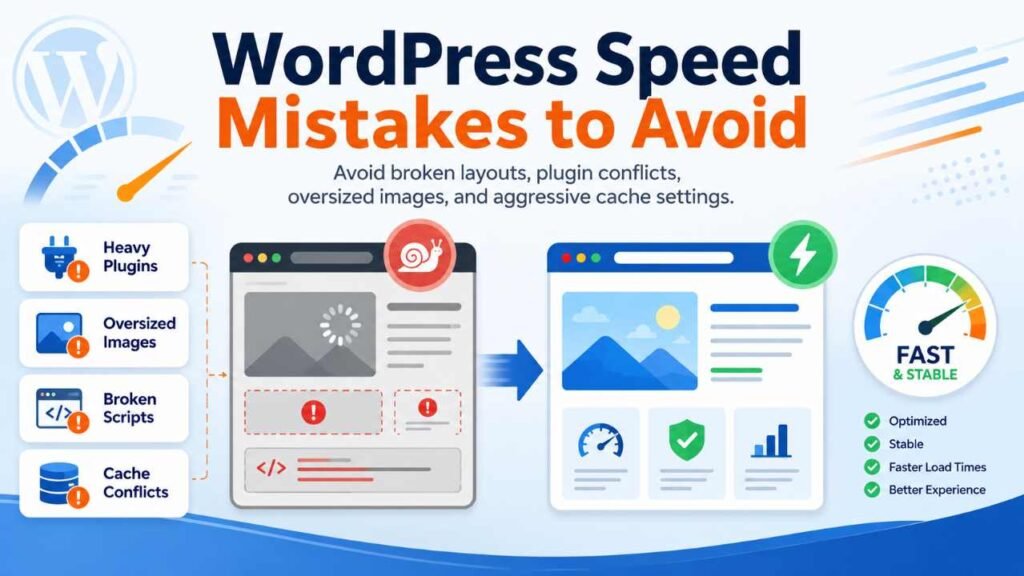
Common WordPress Speed Mistakes
Installing Several Optimization Plugins
Multiple tools may minify the same files, create competing caches, or apply conflicting delays. Choose one primary stack and understand what each layer does.
Enabling Every Feature at Once
“Recommended” settings are not universal. A simple blog and a membership or ecommerce site have different caching requirements.
Optimizing Only the Homepage
Visitors may enter through articles, products, archives, and landing pages. Test representative templates rather than one URL.
Ignoring Mobile Users
Mobile testing often reveals heavy scripts, oversized images, unstable layouts, and slow interaction that desktop tests hide.
Treating Scores as the Only Goal
Scores are diagnostic signals, not the final outcome. The real goal is a site that loads quickly, responds smoothly, remains stable, and completes important user tasks without errors.
A Practical 60-Minute Safe Optimization Plan
Minutes 0–10: Create a full backup, confirm restore access, and record the active setup.
Minutes 10–20: Test the homepage, one article, one landing page, and any conversion page. Save the results.
Minutes 20–30: Enable or verify page caching. Exclude dynamic pages and test logged-in behavior.
Minutes 30–40: Resize and compress the largest images on one important page. Retest.
Minutes 40–50: Minify CSS and JavaScript separately. Test after each setting.
Minutes 50–60: Remove one clearly unnecessary plugin or third-party script, clear caches, and run the functionality checklist.
Stop when the site is stable and meaningfully faster. Further work should be based on evidence, not on activating every available option.
Frequently Asked Questions
What is the safest way to speed up WordPress?
Start with a backup and staging site, measure representative pages, then improve hosting, page caching, and images before using aggressive CSS or JavaScript options. Test after each change.
Can a cache plugin break WordPress?
Yes. Problems can occur when dynamic pages are cached, important scripts are delayed, or multiple cache systems conflict. Correct exclusions and controlled testing usually prevent these issues.
How many performance plugins should I use?
Usually one primary optimization plugin is easier to manage. Avoid overlapping page caching, minification, or script-delay features.
Does a CDN automatically make WordPress fast?
No. A CDN improves resource delivery, but it does not fix slow hosting, inefficient database queries, heavy themes, or excessive scripts.
How often should I test performance?
Test after major updates, design changes, new plugins, marketing-script additions, hosting changes, and important launches. Periodic checks also catch gradual regressions.
Final Thoughts
The safest way to speed up WordPress is to treat performance as a controlled process rather than a collection of plugin switches.
Back up first. Test on staging. Measure representative pages. Apply high-impact improvements in a sensible order. Verify real user journeys after every major change. Keep a record of what changed and maintain a rollback path.
Once the technical foundation is stable, improve how visitors and search engines move through the site. Our guide to building topic clusters for better internal linking is a useful next step for organizing related content without adding unnecessary complexity.
A fast site is valuable. A fast, reliable, maintainable site is the real goal.